WordPress Speed Optimization: The Complete 2026 Guide
A field-tested WordPress speed optimization playbook — hosting, caching layers, database cleanup, Core Web Vitals, plugin auditing and the exact order to fix things in.
WordPress powers a little over 40% of the web, and a depressing share of those sites take four seconds or more to become usable on a mobile connection. The frustrating part is that almost none of that slowness is inherent to WordPress. It is the accumulated cost of decisions — a page builder chosen for convenience, a hosting plan chosen for price, twelve years of revisions in the database, and a stack of plugins nobody has audited since installation.
This guide is the WordPress speed optimization process we actually run at Pocolon, in the order we run it. It is deliberately opinionated about sequence, because the order matters more than most people realise: optimising images before you fix a 900 ms server response time is like waxing a car with a flat tyre.

Why WordPress speed optimization decides your revenue
Speed is not a vanity metric. It is the tax every visitor pays before they see anything you have to sell. Google's own field research has repeatedly shown that the probability of a bounce rises sharply as load time increases — roughly a third more likely at three seconds than at one, and it keeps climbing from there.
There is also a crawl-budget dimension that people forget. A slow server response means Googlebot fetches fewer of your URLs per visit. On a large WooCommerce catalogue that alone can delay indexing of new products by weeks.
The honest summary: speed will not rescue thin content, but slow speed will absolutely suppress good content. Treat it as removing a handbrake rather than adding an engine.
Step 1 — Diagnose before you touch anything
Every wasted WordPress optimization project starts the same way: somebody installs a caching plugin, enables every toggle, and hopes. Resist that. Spend forty-five minutes measuring first, and you will know exactly which three changes carry 80% of the win.
Collect field data, not just lab data
PageSpeed Insights gives you two things. The top section is field data from the Chrome User Experience Report — what real people on real devices actually experienced over the last 28 days. The bottom section is lab data from a simulated Moto G on a throttled connection. Field data is the truth; lab data is the diagnostic. Optimise for the field, debug with the lab.
Establish a baseline you can compare against
- Server response time (TTFB) — measure it on an uncached URL, such as a search results page or a logged-in view. Under 200 ms is excellent, under 600 ms is acceptable, above 1 s means hosting or database work.
- Total page weight and request count — open Chrome DevTools, Network tab, hard reload with cache disabled. Note the transferred size and the number of requests.
- The LCP element — Lighthouse names it explicitly. It is almost always a hero image, a background image, or an H1 waiting on a web font.
- The three heaviest scripts — sort the Network tab by size and filter to JS. This is usually where the third-party bloat hides.
Find out what is actually running
Query Monitor is the single most useful diagnostic plugin in the WordPress ecosystem. Install it on staging and it will tell you the number of database queries per page load, the slowest ones, which plugin fired each HTTP request, and how much PHP memory each component consumed. Nine times out of ten the culprit is visible within five minutes.
If a page runs more than 120 database queries or spends more than 400 ms in PHP, no amount of front-end optimization will save it. Fix the back end first.
Step 2 — Hosting and PHP: the foundation nobody wants to fix
This is the least popular section of any WordPress speed optimization guide because the honest answer is sometimes "your \$3-a-month shared plan is the problem". But the foundation determines the ceiling on everything above it.
What good hosting actually means
| Layer | What to insist on | Why it matters |
|---|---|---|
| PHP version | PHP 8.2 or 8.3 | Roughly 2–3× the throughput of PHP 7.4 on typical WordPress workloads |
| OPcache | Enabled, 128–256 MB | Removes PHP compilation from every single request |
| Object cache | Redis or Memcached | Caches repeated database results across requests — enormous for WooCommerce |
| Web server | NGINX or LiteSpeed | Better static-file handling and concurrency than stock Apache |
| HTTP protocol | HTTP/2 minimum, HTTP/3 preferred | Multiplexing removes the old six-connection bottleneck |
| Location | Same region as your primary audience | Every 1,000 km adds roughly 10–20 ms of unavoidable latency |
The upgrade order that gives the best return
If you can only make one change, upgrade PHP. It is free, it takes ten minutes, and on a plugin-heavy site it routinely cuts time-to-first-byte in half. Test on staging first — abandoned plugins that use removed PHP functions will throw fatals, and it is better to discover that on a copy.
Watch for: hosts that advertise "unlimited" resources but silently throttle CPU per account. If your TTFB is fine at 3 a.m. and terrible at 2 p.m., you are being throttled, and no plugin will fix that.
Step 3 — Build the caching stack in the right order
Caching is not one thing. It is five layers, and each one solves a different problem. Understanding which layer you are missing is the difference between a caching plugin that transforms a site and one that changes nothing.
The five layers
- Browser cache — tells returning visitors not to re-download assets. Set long max-age values on hashed, versioned files.
- Page cache — stores fully rendered HTML so PHP and MySQL never run for anonymous visitors. This is the single biggest server-side win.
- Object cache — persists expensive database results between requests via Redis or Memcached. Critical once you have logged-in users or a cart.
- OPcache — caches compiled PHP bytecode. Enabled at the server level, not in a plugin.
- CDN / edge cache — serves cached HTML and assets from a location physically near the visitor.
Choosing a caching plugin without the religion
WP Rocket, LiteSpeed Cache and FlyingPress all work. The one that will work best for you depends on your server: if you are on LiteSpeed or OpenLiteSpeed, LiteSpeed Cache is the obvious answer because it caches at the server level rather than in PHP. On NGINX, WP Rocket or FlyingPress paired with server-level FastCGI caching is a strong combination.
What matters far more than the brand is configuration discipline. Enable one feature, clear the cache, test the site, measure. Turning on twenty toggles simultaneously and then discovering the checkout is broken is how weekends get ruined.
What never to cache
- Cart, checkout and account pages
- Any URL with a session-specific query string
- Logged-in views (unless you are using a cache that supports per-role variants)
- Live search or AJAX endpoints returning personalised data
Step 4 — CSS, JavaScript and the render-blocking problem
Once the server responds quickly, the browser becomes the bottleneck. The core issue is simple: a stylesheet in the head blocks rendering until it is downloaded and parsed, and a synchronous script blocks parsing until it is downloaded and executed. Every one of those is a stall between your visitor and your content.
The four moves that matter
1. Remove what is not used
Chrome DevTools has a Coverage panel that shows the percentage of every CSS and JS file that actually executes on the current page. On a typical page-builder site you will see 70–90% unused CSS. Most modern optimization plugins can generate critical CSS per template and defer the rest — that alone often moves First Contentful Paint by half a second.
2. Load conditionally
Contact form scripts do not need to load on blog posts. Slider libraries do not need to load on the privacy policy. Plugins such as Asset CleanUp or Perfmatters let you dequeue assets per URL. This is tedious, unglamorous work and it is frequently the biggest single win on a plugin-heavy site.
3. Defer, do not just minify
Minification saves bytes; deferral saves time. Add defer to scripts that do not need to run before paint, and move analytics, chat widgets and pixels to fire after the load event or on first interaction.
4. Put third-party scripts on a budget
Every tag manager container, heatmap tool, review widget and live chat is a third-party connection you do not control. Set an explicit budget — for example, no more than three third-party origins on a landing page — and make every new addition justify itself.
Quick test: block all third-party domains in DevTools and reload. If your score jumps 25 points, you do not have a WordPress problem, you have a marketing-tag problem.
6. Image Optimization: The Single Biggest Win on Most WordPress Sites
On the average WordPress site we audit, images account for between 55% and 78% of total page weight. That means image optimization is not a "nice to have" — it is usually the highest-leverage change you can make. A WordPress speed optimization project that ignores images is a project that will never reach a sub-1-second load time.
Serve modern formats (WebP and AVIF)
JPEG and PNG are decades-old formats. WebP typically cuts file size by 25–35% at identical visual quality, and AVIF often reaches 50% smaller than JPEG. Every browser that matters in 2026 supports WebP, and AVIF support is now above 93% globally.
The safest implementation is a plugin that generates modern formats alongside your originals and serves them conditionally, so unsupported browsers still get a working image. Converters that overwrite your media library in place are risky and hard to reverse.
Compress aggressively, then check with your eyes
Most photographic images can be compressed to quality 72–82 with no perceptible loss. Screenshots, logos and flat graphics behave differently — they compress far better as PNG-8 or SVG. Never trust a single global quality setting for every asset type.
Resize before upload, not just in CSS
Uploading a 4000×3000 pixel photo and displaying it in a 400 pixel-wide card means the browser downloads roughly 100 times more pixel data than it renders. WordPress generates intermediate sizes automatically, but only if your theme requests them properly through srcset. Audit your theme: if you see hardcoded full size calls in template files, that is a bug worth fixing.
| Image role | Recommended max width | Format | Target size |
|---|---|---|---|
| Full-width hero | 1920px | AVIF / WebP | Under 150 KB |
| Blog featured image | 1200px | WebP | Under 90 KB |
| Product thumbnail | 600px | WebP | Under 40 KB |
| Team / avatar | 400px | WebP | Under 25 KB |
| Logo & icons | — | SVG | Under 8 KB |
Lazy-load everything except the LCP image
WordPress adds loading="lazy" automatically, which is great — except when it lazy-loads your hero image. Lazy-loading the Largest Contentful Paint element delays it by an entire round trip and can cost you a full second. Explicitly set loading="eager" and fetchpriority="high" on the hero, and let everything below the fold stay lazy.
Watch out: many "performance" plugins apply lazy-loading with JavaScript instead of the native browser attribute. JS-based lazy-loading blocks rendering until the script executes, and it is one of the most common reasons a site scores worse after installing an optimization plugin.
Always declare width and height
Missing dimensions are the number one cause of Cumulative Layout Shift on WordPress. When the browser does not know how tall an image will be, it reflows the page once the file arrives. Explicit width and height attributes (or a CSS aspect-ratio) let the browser reserve the space in advance and keep CLS at zero.
7. Fonts: The Silent Render Blocker
Web fonts feel harmless because they are small, but they sit directly on the critical rendering path. A single Google Fonts stylesheet adds a third-party DNS lookup, a TLS handshake, a CSS download, and only then the font files themselves. That chain routinely costs 400–900 ms on mobile.
Self-host your fonts
Copy the WOFF2 files to your own server and declare them locally. You remove an entire third-party connection, gain full cache control, and improve privacy compliance at the same time. WOFF2 is the only format you need in 2026 — drop TTF, EOT and SVG fallbacks entirely.
Use font-display: swap and preload the critical face
font-display: swap tells the browser to render text immediately in a fallback font rather than showing invisible text. Then preload only the one or two faces used above the fold:
<link rel="preload" href="/fonts/inter-600.woff2" as="font" type="font/woff2" crossorigin>Preloading every weight is counterproductive — it competes for bandwidth with your LCP image.
Cut your font budget
Most sites load six to nine font files and genuinely use three. Each unnecessary weight is 20–40 KB of blocking download. Pick one body weight, one bold, and one display face. If you need italics, synthesize them rather than shipping a separate file.
- Subset fonts to the character ranges you actually serve (latin, latin-ext)
- Remove icon fonts entirely and use inline SVG instead — a full icon font is often 70 KB to render four arrows
- Set a matching fallback stack with
size-adjustto minimise the visual jump on swap - Never load fonts from more than one origin
8. Database Optimization and Cleanup
A WordPress database that has never been maintained is a slow database. Every uncached page view runs dozens of queries, and bloated tables make each one slower. We regularly find sites where the wp_options and wp_postmeta tables have grown ten times larger than the actual content.
Clear out post revisions
WordPress stores an unlimited revision history by default. A 200-post blog can easily carry 4,000 revision rows, each with its own metadata. Limit revisions in wp-config.php:
define('WP_POST_REVISIONS', 5);Then delete the historic backlog once, carefully, with a backup in hand.
Fix autoloaded options
This is the most under-diagnosed WordPress performance problem in existence. Every autoloaded row in wp_options is fetched on every single request. Healthy sites carry 300–800 KB of autoloaded data. We have seen sites at 14 MB, adding 600 ms to every uncached page load, almost always caused by deactivated plugins that never cleaned up after themselves.
Remove orphaned metadata and expired transients
Uninstalled plugins leave behind postmeta rows, usermeta rows and stale transients that nothing reads any more. Clearing them shrinks your database, speeds up backups, and reduces query time across the board.
Convert to InnoDB and add indexes
Legacy sites sometimes still run MyISAM tables, which lock the entire table on write. InnoDB uses row-level locking and handles concurrency far better. On large sites, adding a composite index to wp_postmeta(meta_key, meta_value) can turn a 900 ms query into a 12 ms query.
Rule of thumb: if your uncached Time To First Byte is above 600 ms and your hosting is decent, the database is the first place to look — not the theme.
9. Plugin Auditing: Quality Over Quantity
The myth that "too many plugins slow down WordPress" is only half true. Thirty well-built plugins can outperform five badly built ones. What actually matters is what each plugin does on every request: how many queries it fires, how much CSS and JS it enqueues site-wide, and whether it hooks into init when it only needs to run on one page.
Measure, do not guess
A query monitoring plugin will show you the load contribution of every active plugin on any given URL. Sort by time. In almost every audit, two or three plugins account for more than half the server-side work. Those are your targets.
The usual suspects
| Plugin category | Typical cost | Better approach |
|---|---|---|
| Page builders | 150–400 KB CSS+JS on every page | Block editor with a lightweight theme, or disable builder assets on pages that do not use it |
| Slider plugins | 120–300 KB, often blocking | CSS scroll-snap carousel, or a static hero image |
| Social sharing | Third-party scripts, 4–9 extra requests | Plain anchor links with share URLs — zero JavaScript |
| Related posts | Expensive uncached queries per view | Cached query or a static curated list |
| Contact forms | Assets loaded site-wide | Conditionally dequeue on pages without a form |
| Statistics / analytics plugins | Writes to the DB on every pageview | Client-side analytics, or a hosted service |
Conditional asset loading
The highest-value technique in plugin optimization is disabling assets where they are not needed. If your contact form plugin only appears on /contact/, there is no reason for its stylesheet to load on the homepage. An asset manager plugin, or a handful of lines in your child theme using wp_dequeue_style(), can cut 200–500 KB from your average page.
Kill the built-in noise
- Disable emoji scripts — WordPress still loads a 15 KB polyfill nobody needs
- Remove embed.js unless you actually embed other WordPress posts
- Disable Dashicons on the front end for logged-out visitors
- Turn off the block library CSS if your theme does not use core blocks
- Increase the heartbeat interval or disable it outside the post editor
- Disable XML-RPC if you do not use the mobile app or Jetpack
10. WooCommerce-Specific Speed Optimization
WooCommerce changes the rules. Cart, checkout and account pages cannot be cached the way a blog post can, sessions create per-user state, and product catalogues generate heavy queries. A store that scores 95 on its homepage can still crawl on category pages.
Fix cart fragments
WooCommerce fires an AJAX request called get_refreshed_fragments on every page load to keep the mini-cart count current. On slow hosting that single request can take 800 ms and it blocks nothing visually but consumes the main thread. Restrict it to pages where a cart indicator actually appears, or replace it with a cached count.
Exclude the right pages from caching
Cart, checkout, my-account and any endpoint with ?add-to-cart= must bypass the page cache. Getting this wrong is worse than having no cache at all — customers see each other's carts. Every serious caching plugin ships WooCommerce-aware rules; make sure they are enabled.
Tame the product catalogue
- Reduce products per page from 24 to 12 on mobile-heavy stores
- Use AJAX-free pagination so each page is fully cacheable
- Disable the WooCommerce cart and account scripts on non-shop pages
- Enable persistent object caching — WooCommerce benefits from it more than any other plugin
- Move product image galleries to lazy zoom, not preloaded high-resolution files
- Limit variable products to a sensible number of variations; 200+ variations generate hundreds of queries
Real result: on a WooCommerce store with 3,400 products, restricting cart fragments, adding Redis object caching and indexing wp_postmeta reduced category page TTFB from 1.9 s to 310 ms without touching the theme.
11. Passing Core Web Vitals in WordPress
Core Web Vitals are what Google actually measures for ranking, and they are measured on real visitors — not in a lab. A perfect Lighthouse score with failing field data will not help your rankings. Here is how each metric behaves on WordPress and what fixes it.
Largest Contentful Paint (target: under 2.5 s)
On WordPress, the LCP element is almost always the hero image or the H1 in a page-builder header. The fix sequence is: reduce TTFB with caching, preload the hero image with high fetch priority, stop lazy-loading it, serve it as WebP or AVIF at the correct dimensions, and remove render-blocking CSS ahead of it.
Interaction to Next Paint (target: under 200 ms)
INP replaced First Input Delay and it is far less forgiving. It measures how quickly the page responds to every interaction, not just the first. WordPress sites fail INP because of long JavaScript tasks from page builders, sliders, chat widgets and analytics stacks. Break up long tasks, delay non-critical scripts until first interaction, and remove any script whose business value you cannot articulate.
Cumulative Layout Shift (target: under 0.1)
CLS comes from images without dimensions, ads and embeds injected after paint, web fonts swapping to a differently-sized face, and cookie banners that push content down. Reserve space for every dynamic element with an explicit height or aspect ratio.
Remember that CWV are assessed at the 75th percentile of real users over a rolling 28-day window. After you deploy fixes, field data takes up to four weeks to fully reflect the improvement. Do not panic on day three.
12. The 30-Point WordPress Speed Optimization Checklist
This is the exact sequence our engineers work through on every WordPress speed optimization project. Work top to bottom — the order matters, because later items are easier to measure once the earlier ones are done.
- Take a full backup before touching anything
- Record a baseline: PageSpeed mobile and desktop, plus real-user field data
- Confirm your host runs PHP 8.2 or newer with OPcache enabled
- Verify HTTP/2 or HTTP/3 is active
- Enable server-level or plugin page caching
- Enable browser caching with long max-age on static assets
- Turn on Gzip or, preferably, Brotli compression
- Add a persistent object cache (Redis or Memcached)
- Exclude cart, checkout, account and logged-in views from page caching
- Connect a CDN for static assets
- Minify and combine CSS where HTTP/1.1 is still in play; on HTTP/2 minify only
- Generate critical CSS and defer the remainder
- Remove unused CSS on your top ten landing pages
- Defer or delay all non-critical JavaScript
- Delay third-party scripts until first user interaction
- Convert all images to WebP or AVIF
- Resize oversized images to their real display dimensions
- Set explicit width and height on every image
- Preload the LCP image with high fetch priority and eager loading
- Lazy-load every below-the-fold image and iframe
- Self-host fonts as WOFF2 with font-display: swap
- Preload only above-the-fold font faces
- Reduce the font file count to three or fewer
- Replace icon fonts with inline SVG
- Limit post revisions and delete the historic backlog
- Audit and shrink autoloaded options in wp_options
- Clean orphaned postmeta, usermeta and expired transients
- Convert tables to InnoDB and add indexes on large sites
- Audit every plugin for query cost and site-wide assets
- Re-test, compare against baseline, and monitor field data for four weeks
13. Seven Mistakes That Make WordPress Slower
Almost every "my site got slower after optimizing" story traces back to one of these.
1. Stacking multiple caching plugins
Two caching plugins do not double your speed — they fight over the same rewrite rules and produce broken, inconsistent output. Run exactly one.
2. Optimizing for the score instead of the visitor
Aggressively deferring all CSS can push a Lighthouse score to 98 while giving real visitors a half-second flash of unstyled content. Always confirm the page still feels fast.
3. Enabling every toggle in the optimization plugin
Combine CSS, combine JS, remove unused CSS, delay JS, lazy-load background images — turning them all on at once is how you break a site and lose the ability to identify which setting did it. Enable one, test, then move on.
4. Lazy-loading the hero image
Covered above, and worth repeating because it is the most common single regression we find.
5. Treating a CDN as a magic fix
A CDN accelerates static file delivery. It does nothing for a slow database query or a bloated plugin. If your uncached TTFB is 2 s, a CDN will faithfully deliver a slow page from a nearby edge.
6. Ignoring mobile entirely
Google indexes mobile-first, and mobile hardware is three to four times slower at parsing JavaScript. A desktop score of 99 with a mobile score of 41 is a failing site.
7. Never re-testing after content changes
Performance decays. A new plugin, a new tracking pixel, an editor uploading a 6 MB PNG — sites drift back within months. Schedule a quarterly check.
Bringing It All Together
WordPress speed optimization is not one heroic fix. It is a disciplined sequence: fast hosting, correct caching, disciplined assets, lean images, self-hosted fonts, a clean database and an audited plugin stack. Do those seven things properly and a sub-1-second load time on WordPress is entirely achievable — we do it every week.
Start with a baseline measurement, work the checklist in order, and change one thing at a time so you always know what moved the needle. If your site is business-critical and you would rather have specialists handle it, that is exactly what we do.
Want a sub-1-second WordPress site without the guesswork?
We will audit your site, show you exactly what is costing you seconds, and implement every fix — with before-and-after proof. No score-chasing, no broken layouts.
Get a Free Speed AuditFrequently asked questions
A focused pass on a typical business site takes one to two days: half a day of auditing, a day of implementation, and a final verification round. Large WooCommerce stores with heavy plugin stacks usually need three to five days because every change has to be regression-tested against checkout. At Pocolon we deliver most WordPress speed optimization projects inside 48 hours.
Speed is a confirmed ranking signal through the page experience framework, but the bigger win is indirect. Faster pages get crawled more efficiently, hold visitors longer, and convert better — and those engagement signals compound. In practice sites that move from a 40 to a 90+ PageSpeed score almost always see organic traffic climb within eight to twelve weeks.
No. A caching plugin solves repeat-visit and server-response time, which is roughly a third of the problem. It does nothing about oversized images, render-blocking third-party scripts, bloated page builders, an unindexed database or a slow host. Caching is one layer in a stack, not a substitute for the stack.
A modern block theme built on native WordPress blocks is almost always lighter, because it does not ship a runtime framework, a grid system and a large CSS bundle on every request. Elementor and similar builders can be made fast, but you are starting several hundred kilobytes in the hole. If you are rebuilding anyway, a block theme is the better performance decision.
The count matters far less than what each plugin does. Twelve well-written plugins that only load on the pages they are needed on will outperform four that each enqueue jQuery, a CSS bundle and an external API call on every request. Audit by weight and by request, not by number.
It should not. Aggressive CSS and JavaScript minification or deferral can occasionally break a slider or a form, which is exactly why every change is applied one at a time on staging and verified. Done properly the visual result is identical — it simply arrives sooner.
Want this done for you — in 48 hours?
Send us your URL and we will run a free, no-obligation speed audit. If you like what you see, we implement every fix ourselves and guarantee a green Core Web Vitals result.
Get my free speed auditKeep reading
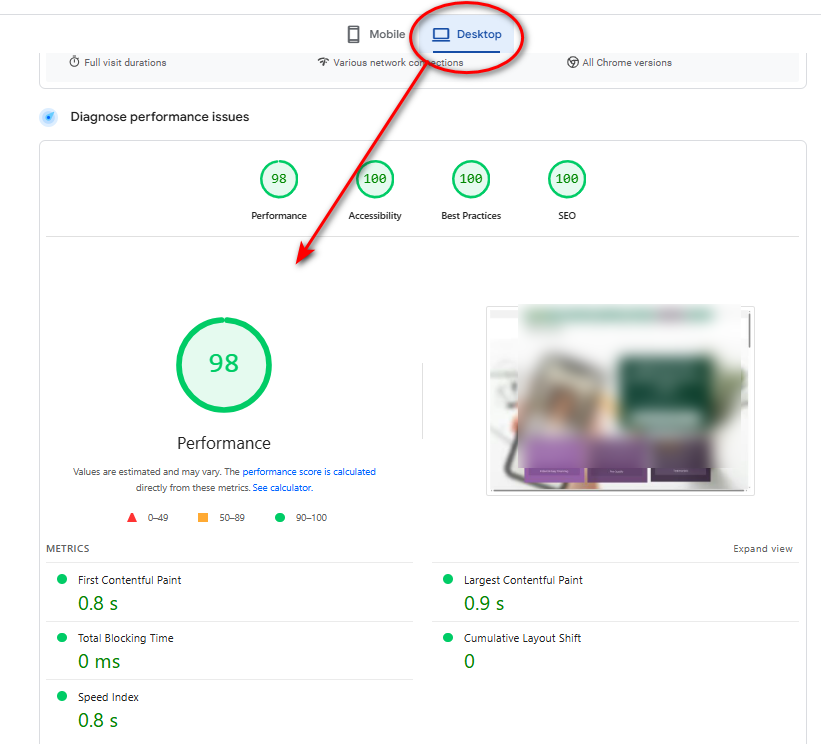
Shopify Store Speed Optimization: How to Score 90+ and Sell More in 2026
Shopify speed optimization from the theme layer down — Liquid, apps, images, third-party scripts and Core Web Vitals. Everything you can control on a locked-down platform.
Read guide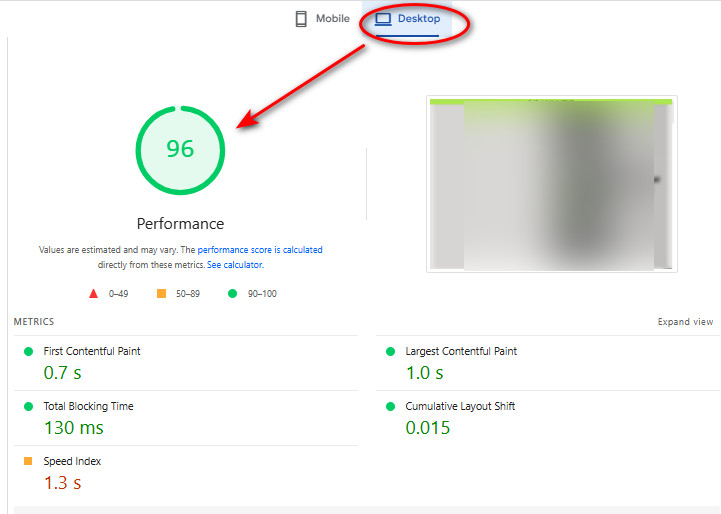
Wix Speed Optimization: How to Make a Slow Wix Site Genuinely Fast (2026)
Wix limits your access to the code — but not your results. Here is the complete Wix speed optimization method we use to lift real sites into the green.
Read guide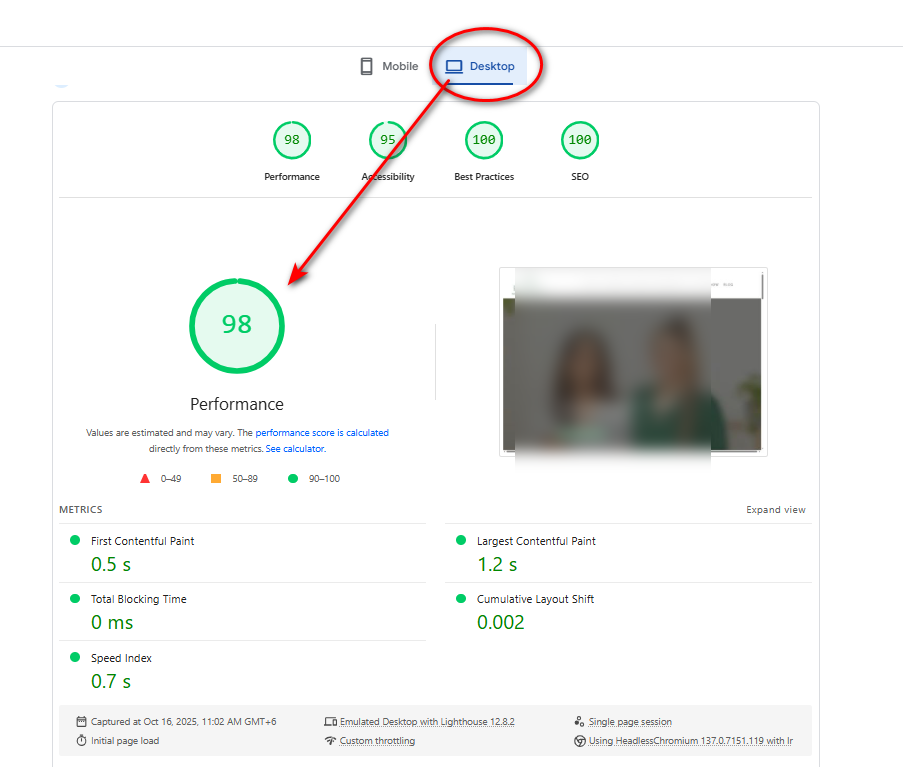
Squarespace Speed Optimization: The Practical 2026 Playbook
Squarespace 7.1 is heavier than it looks. Learn how to cut its payload, tame code injection, fix LCP and pass Core Web Vitals without leaving the platform.
Read guide