Webflow Speed Optimization: The Complete 2026 Guide
A developer-grade Webflow speed optimization guide - images, interactions, custom code, CMS collections, fonts and Core Web Vitals on Webflow hosting.
Webflow is the rare visual builder that can produce a genuinely fast site. It outputs clean HTML and CSS, hosts on a strong global CDN, and handles minification, compression and caching without asking. Which means when a Webflow site is slow, the cause is almost always something the designer added. This is the complete Webflow speed optimization process we run on client projects, in the order we actually do it.
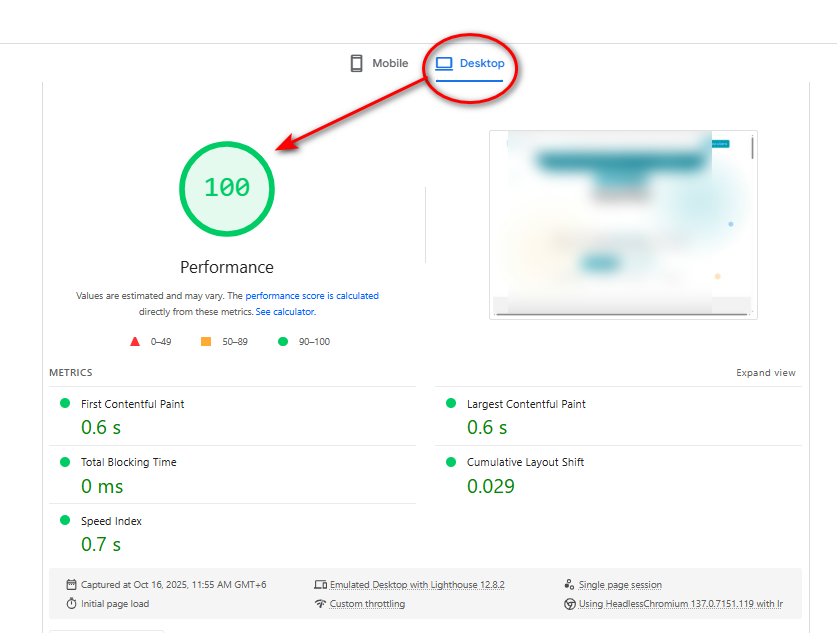
Why Webflow Sites Can Be Fast — And Why Yours Is Not
Start from the right premise: Webflow is not your problem. The platform gives you a better baseline than WordPress, Wix or Squarespace. Understanding what it does for you tells you exactly where to look when things go wrong.
What Webflow already does well
- Outputs semantic HTML with no framework runtime for basic pages
- Minifies CSS, JavaScript and HTML on publish
- Serves everything through a global CDN with Brotli compression
- Handles caching headers and SSL without configuration
- Generates responsive image variants and serves WebP where supported
- Adds native lazy-loading to images by default
Where the time actually goes
Across the Webflow audits we run, poor scores trace to four causes, almost always in this order of severity: interactions and animation, image weight, third-party scripts and Lottie files. Notice that all four are additive — things a designer chose to include. That is good news, because it means every one of them is reversible.
What Webflow Handles vs What You Control
| Layer | Handled by | Your leverage |
|---|---|---|
| Hosting & CDN | Webflow | None needed — already strong |
| Minification & compression | Webflow | Just make sure it is enabled on publish |
| Caching headers | Webflow | None |
| HTML output | Webflow, from your structure | Moderate — keep the DOM shallow |
| Images | You | High |
| Interactions | You | Very high |
| Custom code | You | High |
| Fonts | You | Moderate |
| CSS class structure | You | Moderate |
| CMS collection lists | You | Moderate |
| Lottie & video | You | High |
The takeaway: unlike other hosted platforms, on Webflow you have real control over almost everything that matters. There is no excuse for a slow Webflow site other than choices.
Step 1 — Measure the Published Site Properly
Never benchmark the Designer or a preview
The Webflow Designer loads the entire editing runtime and the preview link carries additional tooling. Publish to your live domain (or the webflow.io staging domain) and test that URL in an incognito window with mobile emulation.
Test four templates
- Homepage — usually the most interaction-heavy page
- Your top organic landing page — where Core Web Vitals are measured most
- A CMS template page (blog post, project, product)
- A CMS collection list page — often the heaviest due to repeated images
Read field data before the lab score
PageSpeed Insights reports field data from real Chrome users over a rolling 28-day window above the lab results. Field data is the ranking signal. On Webflow sites the pattern we see most often is a healthy lab score with a failing field INP — the fingerprint of too many interactions.
Profile the main thread
Open DevTools, throttle CPU to 4x slowdown, and record a performance trace while scrolling the homepage. If you see continuous long yellow scripting blocks during scroll, your interactions are the problem and no amount of image work will fix it.
Step 2 — Images and Responsive Variants
Webflow does more for you here than most platforms, but it cannot fix a bad source file and it will not regenerate variants you never asked for.
Prepare assets before upload
| Placement | Upload width | Format | Target size |
|---|---|---|---|
| Full-width hero | 1920px | WebP or JPEG | Under 180 KB |
| Section / feature image | 1200px | WebP | Under 120 KB |
| CMS card thumbnail | 800px | WebP | Under 70 KB |
| Avatar / logo wall | 400px | WebP or SVG | Under 30 KB |
| Icons & logos | — | SVG | Under 10 KB |
| Screenshots | Actual size | PNG-8 or WebP | Under 100 KB |
Always generate responsive variants
Webflow's asset panel lets you generate responsive image sets. Do it for every image, and re-do it whenever you replace an asset — replacing a file does not always regenerate its variants, which silently leaves you serving a single full-size file to phones.
Get the LCP image right
Webflow adds lazy-loading by default, which is excellent everywhere except on your hero. Set the hero image's loading setting to eager in the element settings, and add a preload hint in the page's custom head code:
<link rel="preload" as="image" href="YOUR_HERO_URL" fetchpriority="high">This single change routinely takes 400–900 ms off mobile LCP on Webflow sites.
Use SVG properly
- Export SVGs from your design tool with editor metadata stripped — raw exports are often 5x larger than needed
- Inline small decorative SVGs via an embed rather than as separate image requests
- Never use a PNG for a logo, badge, arrow or icon
- Avoid SVG files containing embedded raster images — you get the worst of both formats
- Simplify paths on illustrative SVGs; a traced photo can be a 900 KB SVG
Background images: images set as CSS backgrounds do not get responsive variants and are not lazy-loaded. A full-bleed 1920px background on a mobile viewport delivers the desktop file to every phone. For anything large, use a real image element instead.
Step 3 — Interactions: The Main-Thread Tax
This is the section that matters most, and the one most Webflow guides skip. Webflow Interactions are the platform's signature feature and the single biggest cause of poor Webflow performance in the wild.
What actually happens
Every interaction you build compiles into JavaScript that ships in the site's webflow.js bundle and executes on the main thread. Scroll-linked animations run continuously as the visitor scrolls. Mouse-move parallax runs on every pointer event. Twenty of those on a long page means the main thread is never idle, and INP collapses.
| Interaction type | Cost | Guidance |
|---|---|---|
| Simple hover state (CSS-able) | Very low | Prefer a CSS transition over an interaction |
| Scroll-into-view fade / slide | Low each, adds up | Limit to a handful of meaningful moments |
| Scroll-linked (while scrolling) | High | Use sparingly — one per page at most |
| Mouse-move parallax | Very high | Remove, especially on mobile |
| Page-load animation sequence | Very high | Delays LCP directly — remove above the fold |
| Continuous / looping animation | Very high | Never leave running off-screen |
The rules we apply
- No animation on above-the-fold elements — a page-load reveal on your H1 literally delays your LCP
- Replace hover interactions with CSS transitions wherever the effect allows
- One scroll-linked animation per page, maximum
- No mouse-move or parallax effects on mobile breakpoints
- Animate only
transformandopacity— animating width, height, top or left forces layout on every frame - Delete interactions on elements you have since removed — orphaned interactions still ship in the bundle
- Audit the Interactions panel and delete every unused animation preset
Real result: a Webflow agency site sat at mobile 44 with an INP of 480 ms. It had 38 interactions, including mouse parallax on three sections. Cutting to six interactions and converting hovers to CSS took it to mobile 89 with an INP of 110 ms. No images were touched.
Step 4 — Custom Code and Third-Party Libraries
Because Webflow's own output is clean, third-party code stands out sharply in a profile. It is usually the second-largest contributor after interactions.
Audit the code panels
Check three places: site-wide head and footer code in Project Settings, page-level head and footer code, and every Embed element inside your pages. Embeds are the easiest to forget because they are invisible in the Designer canvas.
- Remove tracking pixels for advertising channels you no longer run
- Consolidate analytics behind a single tag manager instead of six inline snippets
- Drop jQuery plugins — Webflow already loads jQuery, so do not load a second copy
- Load chat widgets on click of a static button rather than on page load
- Remove heatmap and session-recording tools when no study is active
- Add
deferto any script that does not need to run before paint - Never place a synchronous third-party script in the head
- Self-host small libraries instead of hitting a third-party CDN — you save a DNS lookup and a TLS handshake
Slider and carousel libraries
Designers frequently import Swiper or a similar library for a testimonial carousel. That is 100–150 KB of JavaScript for a component Webflow's native slider or a CSS scroll-snap container could handle. Prefer native, and if you must import, load it only on the pages that use it.
Step 5 — Fonts and the Render-Blocking Path
Webflow makes font management easy, which means it is easy to end up with nine files. Fonts sit on the critical path, so this is disproportionately valuable work.
- Two families maximum, three total weights across the whole site
- Upload custom fonts as WOFF2 only — delete TTF, OTF and WOFF duplicates
- Prefer Webflow-hosted or self-hosted fonts over Google Fonts to remove a third-party origin
- Set font-display to swap so text paints immediately in a fallback
- Preload only the face used in your hero headline
- Never load an italic file you use once in a caption — let the browser synthesise it
- Delete uploaded fonts that are no longer assigned to any style
A site loading four weights from Google Fonts commonly spends 400–700 ms of mobile First Contentful Paint on typography alone. Reducing to two self-hosted WOFF2 files is often the second-fastest win available after interactions.
Step 6 — Class Hygiene and CSS Bloat
Webflow generates one stylesheet per site containing every class you have ever created. Unused classes are dead weight downloaded by every visitor on every page.
Why it accumulates
Duplicating an element creates a new combo class. Experimenting creates classes you abandon. Over a long project the stylesheet can double in size with rules nothing references. It is rarely catastrophic — typically 30–120 KB — but it is free to remove.
- Run Webflow's built-in clean-up to remove unused styles — after taking a backup
- Build with a consistent class system so you reuse rather than duplicate
- Prefer utility-style base classes with combo modifiers over one-off classes per element
- Delete abandoned symbols and components — their styles persist in the stylesheet
- Keep the DOM shallow; deeply nested div structures increase layout and style calculation cost
- Avoid absolutely positioned decorative layers stacked five deep
Before you clean up styles: Webflow's unused-style removal is not always reversible in the way you expect, and it can strip classes referenced only from custom code or CMS rich text. Duplicate the project first, run the clean-up on the duplicate, and verify every template before applying it to the live project.
Step 7 — CMS Collections and Dynamic Lists
Collection list pages are usually the heaviest templates on a Webflow site, because whatever cost a single card carries gets multiplied.
- Limit items per page to 9–12 with pagination rather than rendering the whole collection
- Serve card thumbnails at card size, never at hero size
- Keep interactions off collection items — a hover animation on 24 cards is 24 interaction instances
- Avoid nesting collection lists inside collection lists; the request and render cost multiplies
- Do not place multiple collection lists above the fold
- Lazy-load everything below the first row of cards
- Set explicit aspect ratios on card images so CLS stays at zero as they arrive
- Use plain text fields rather than rich text for short values — rich text ships extra markup per item
Filtering and search
Client-side filtering libraries load the entire collection into the browser and then hide items. On a 300-item collection that is a large payload and a lot of DOM. Prefer paginated category pages, which are also better for SEO because each one is an indexable URL.
Step 8 — Video, Lottie and Background Media
Background video
A hero background video is 3–8 MB and consumes bandwidth during the exact seconds your visitor is deciding whether to stay. Use a still frame instead. If the brand genuinely requires motion, move it below the fold behind a click-to-play poster.
Lottie animations
Lottie is beautiful and expensive: a JavaScript player plus a JSON composition that can run to several hundred kilobytes, re-rendered every frame. Our rules:
- None above the fold — it competes directly with your LCP
- One per page maximum, below the fold, triggered on scroll into view
- Cap JSON files at roughly 100 KB; simplify the composition in After Effects rather than shipping the complex version
- Never loop a Lottie indefinitely while it is off-screen
- Consider an animated SVG or a short MP4 as a lighter substitute
Embedded video players
A native YouTube or Vimeo embed loads the full player immediately — often 500 KB to 1 MB before anyone presses play. Use a lightweight thumbnail that swaps in the iframe on click. It is a five-minute change with an outsized effect.
Step 9 — Webflow Hosting, SSR and Export Decisions
Webflow hosting is genuinely good, and there are only a few settings worth verifying.
- Confirm minification for HTML, CSS and JavaScript is enabled in Project Settings before publishing
- Use a custom domain with the www or root variant set as canonical — avoid redirect chains
- Keep your redirect table lean; every 301 adds a round trip
- Publish to production rather than benchmarking the webflow.io staging domain when you can
- Verify your sitemap does not include retired CMS items
Should you export?
Exporting gives you the HTML, CSS, JS and assets, which means you can run your own build pipeline: critical CSS extraction, aggressive tree-shaking, AVIF conversion, self-hosted everything. The cost is losing the CMS, native forms, and Webflow's hosting conveniences, plus you now own deployment.
Our honest view: for the overwhelming majority of marketing sites, optimising on-platform gets you to 95–100 desktop and 85–95 mobile, which is more than enough. Export only when you have a specific technical requirement Webflow cannot satisfy — not as a performance shortcut.
Passing Core Web Vitals on Webflow
Core Web Vitals are measured on real Chrome visitors at the 75th percentile over a rolling 28-day window. Webflow sites fail each metric in characteristic ways.
Largest Contentful Paint — target under 2.5 s
Nearly always the hero image, a background video poster or the hero headline. Fix order: set the hero image to eager loading, preload it with high fetch priority, remove any page-load animation on above-the-fold elements, replace background video with a still, and make sure the hero is a real image element rather than a CSS background.
Interaction to Next Paint — target under 200 ms
This is Webflow's characteristic weakness and it is almost entirely interactions plus third-party scripts. Cut the interaction count hard, convert hovers to CSS, remove parallax, delete orphaned animations, and defer or delay every non-essential script. Webflow sites that fail INP usually pass it after a single afternoon of interaction pruning.
Cumulative Layout Shift — target under 0.1
Caused by images without reserved dimensions, embeds injected after paint, fonts swapping to different metrics, and cookie or announcement bars appearing late. Set aspect ratios on every dynamic image and reserve height for every late-arriving element.
The 28-Point Webflow Speed Optimization Checklist
Work top to bottom. On Webflow the interaction items usually produce the largest movement, so they come early.
- Duplicate the project before running any destructive clean-up
- Record a baseline on the published URL for four templates, mobile and desktop
- Note field-data LCP, INP and CLS before changing anything
- Record a CPU-throttled performance trace while scrolling the homepage
- Audit the Interactions panel and list every animation
- Delete every orphaned and unused interaction
- Remove all animation from above-the-fold elements
- Convert hover interactions to CSS transitions
- Reduce scroll-linked animations to one per page
- Remove mouse-move and parallax effects entirely on mobile
- Animate only transform and opacity
- Compress and resize every image before upload
- Generate responsive variants for every asset, and again after any replacement
- Set the hero image to eager loading
- Preload the hero image with high fetch priority
- Convert large CSS background images to real image elements
- Replace all icon and logo raster files with optimised SVG
- Remove background video from above the fold
- Limit Lottie to one below-the-fold instance under 100 KB
- Replace native video embeds with click-to-load thumbnails
- Reduce to two font families and three weights, WOFF2 only
- Delete unused uploaded fonts
- Audit site-wide, page-level and embed custom code
- Remove inactive tracking pixels and duplicate jQuery
- Defer every non-critical script and load chat on click
- Limit collection lists to 9–12 items with pagination
- Run the unused-style clean-up on a duplicated project first
- Republish, re-test all four templates, and monitor field data for four weeks
Seven Mistakes That Make Webflow Sites Slow
1. Treating interactions as free
They are the single largest performance cost on most Webflow sites. Every animation is JavaScript on the main thread. Budget them like you budget images.
2. Animating the hero on page load
A staggered reveal on your headline and hero image is, by definition, a delay to your Largest Contentful Paint. It is the most self-inflicted metric failure in Webflow.
3. Skipping responsive variant generation
Especially after replacing an asset. The Designer looks identical and phones quietly download the desktop file.
4. Using CSS backgrounds for large imagery
No responsive variants, no lazy-loading, and often invisible to the LCP optimisation you just did.
5. Importing a library Webflow already provides
A second jQuery copy, or Swiper for a carousel the native slider handles. Check what is already on the page before you import.
6. Benchmarking the Designer or preview link
Both load tooling no visitor receives. Always test the published URL in a private window.
7. Optimising the homepage and forgetting CMS templates
Collection list and CMS template pages usually carry more organic traffic and worse scores than the homepage everyone keeps testing.
Bringing It All Together
Webflow gives you a better performance baseline than any other visual builder, and it hands you two loaded weapons: interactions and media. Optimising a Webflow site means using both with restraint — prune the animations hard, prepare and correctly configure your images, keep third-party code to what you can justify, hold fonts to three files, and keep collection lists paginated. Do that and a perfect desktop score with green Core Web Vitals is a realistic, repeatable outcome.
Measure the published site, change one category at a time, and let field data catch up over a few weeks. If you would rather have specialists handle it end to end, that is exactly what we do — with before-and-after proof on every template.
Want a Webflow site that scores 100 without losing the motion design?
We will audit your interactions, assets and custom code, show you exactly what is costing you seconds, and implement every fix.
Get a Free Speed AuditFrequently asked questions
Webflow can be genuinely fast - we regularly reach 100 desktop and 90+ mobile on Webflow builds. The platform outputs clean semantic HTML and CSS, serves from a fast global CDN and handles compression and caching for you. Slow Webflow sites are almost always the result of heavy interactions, uncompressed images, Lottie animations and stacked third-party libraries.
Yes, and it is the most common cause of poor Webflow performance. Interactions compile into JavaScript that runs on the main thread. A handful of tasteful reveals costs almost nothing; forty scroll-linked animations across a long page will damage Interaction to Next Paint and cause visible stutter on mid-range phones.
Webflow offers responsive variant generation and will serve WebP, but the output is derived from your upload. A 5 MB, 4000-pixel PNG produces heavier variants than a properly prepared 1920-pixel WebP. Compress before upload, and always re-generate responsive variants after replacing an asset.
Rarely for speed alone. Webflow hosting is fast, globally distributed and handles compression, caching and SSL well. Exporting gives you full control over asset pipelines but you lose the CMS, forms and hosting conveniences. Optimise on-platform first; export only if you have a specific technical requirement Webflow cannot meet.
Treat one above the fold as your limit, and prefer none. Lottie requires a JavaScript player plus a JSON payload that can run into hundreds of kilobytes, and complex compositions are expensive to render every frame. Below the fold, load them lazily and cap the file size.
A well-built Webflow marketing site should reach 95-100 on desktop and 80-95 on mobile with all Core Web Vitals passing. If you are far below that, the cause is almost certainly identifiable in three places: image weight, interaction count and third-party scripts.
Want this done for you — in 48 hours?
Send us your URL and we will run a free, no-obligation speed audit. If you like what you see, we implement every fix ourselves and guarantee a green Core Web Vitals result.
Get my free speed auditKeep reading

WordPress Speed Optimization: The Complete 2026 Guide to a Sub-1-Second Site
A field-tested WordPress speed optimization playbook — hosting, caching layers, database cleanup, Core Web Vitals, plugin auditing and the exact order to fix things in.
Read guide
Shopify Store Speed Optimization: How to Score 90+ and Sell More in 2026
Shopify speed optimization from the theme layer down — Liquid, apps, images, third-party scripts and Core Web Vitals. Everything you can control on a locked-down platform.
Read guide
Wix Speed Optimization: How to Make a Slow Wix Site Genuinely Fast (2026)
Wix limits your access to the code — but not your results. Here is the complete Wix speed optimization method we use to lift real sites into the green.
Read guide